Getting Started
The Fallout 2d20 Helper is a Discord bot providing basic helper functionality when playing the Fallout 2d20 TTRPG system. This covers general usage of the bot once it has been installed via the Installation instructions
Running Commands in Discord
The bot uses Discord's Slash Commands to take user input and run the command. This helps users stay aware of available parameters and provides better handling of optional ones.

Selecting the Command
To run a Slash Command, type / in the chat bar. This brings up the slash commands for all of the bots in the server. Next, either browse through the list to find the desired command or start typing keywords for the command.
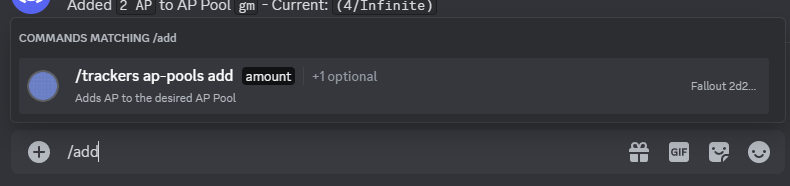
For instance, if you were trying to add AP to an AP Pool, you could type / then add and Discord will filter down to only the Slash Commands that have add in the name. This saves a lot of time when typing in the name of the command.
Warning
Remember to check the name of the bot in the far right side of the command to ensure that the right command is being executed. For this bot, it should say Fallout 2d20 Helper.
Entering Parameters for the Command
Many of the commands take parameters that affect how the command is ran. These parameters are divided between Required and Optional parameters.
Required parameters will always be displayed after the command name, once the command is selected. Values can be entered and tab can be pressed to move to the next parameter. Discord will display an error if a required parameter does not have a value.
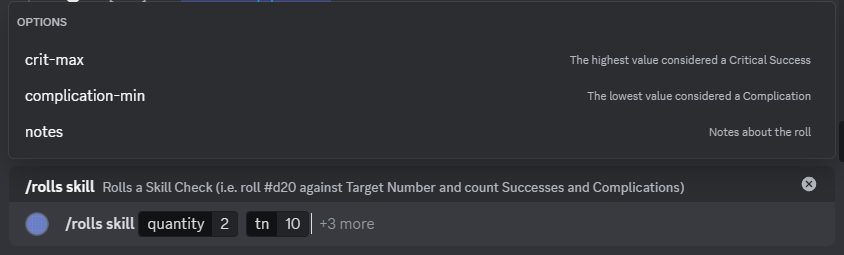
Optional parameters show up in the dialog box above the chat bar. The optional parameters can be added by either clicking on them with the mouse, using the up/down arrow keys + Enter, or by typing the name in directly.
In the example below, quantity and tn are both required parameters, so they show up immediately in the chat bar. Once values are entered for those, the "Options" menu pops up showing all of the optional parameters.
Tip
Remember that each parameter has descriptive text to explain what values are expected or how to use it
Seeing the Response in Discord
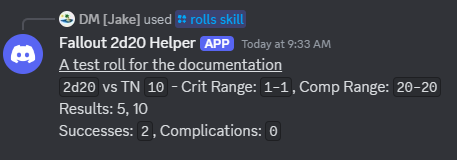
After every command is ran, the bot with respond with a message including the results of the command or an error message.
Common Error Messages
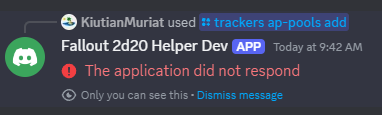
The application did not respond
If the bot is down, Discord will send a response message stating The application did not respond. Please contact the bot administrator to resolve the issue.
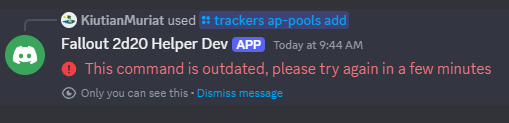
The command is outdated
If the bot/command has been updated since the last time the command was ran, Discord may respond with a message stating The command is outdated, please try again in a few minutes. Generally, rerunning the command fixes the problem because Discord refreshes its command cache.